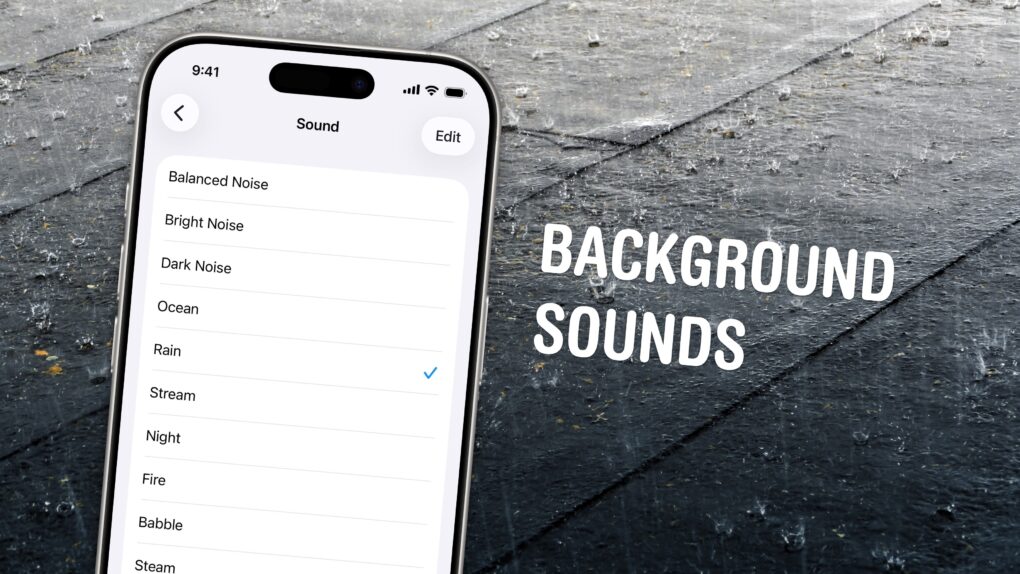
If you’re working in an office or in the city, you’re probably inundated with noise from people chattering, cars running and nearby music. Your iPhone has a built-in feature called Background Sounds for playing rain noises or white noise to tune it all out.
Or, if you work at home and want some of that office or coffee shop ambiance, you can add some of those chatter sounds back in. You can even simulate a commute, with sounds of a bus, train, airplane or even boat.
You don’t need to download any apps or pay a cent. Background Sounds is a free feature on your iPhone, iPad and Mac. Let me show you how it works.
How to use Background Sounds on iPhone
There are a bunch of different strategies for staying focused while working, studying, reading and other pursuits. You don’t want to be pulled away from your phone or your cat as soon as you feel like you get into the groove.
Some people find listening to music a great strategy — but if your favorite tracks are lyric-heavy, it might distract more than help. Fans and noise machines can produce white noise, which drowns out everything else with static.
But if all you have is your iPhone or Mac, you can use the system’s built-in Background Sounds feature. It’s a great tool to serve up some soothing sounds in a pinch.
Table of contents: How to use Background Sounds on iPhone
- Turn on Background Sounds in Accessibility Settings
- Choose your ambient sounds
- Set a timer to turn it off automatically
- Toggle Background Sounds from Control Center
- Use background sounds on the Mac, too
- More great accessibility features
Turn on Background Sounds in Accessibility Settings
Screenshot: D. Griffin Jones/Cult of Mac
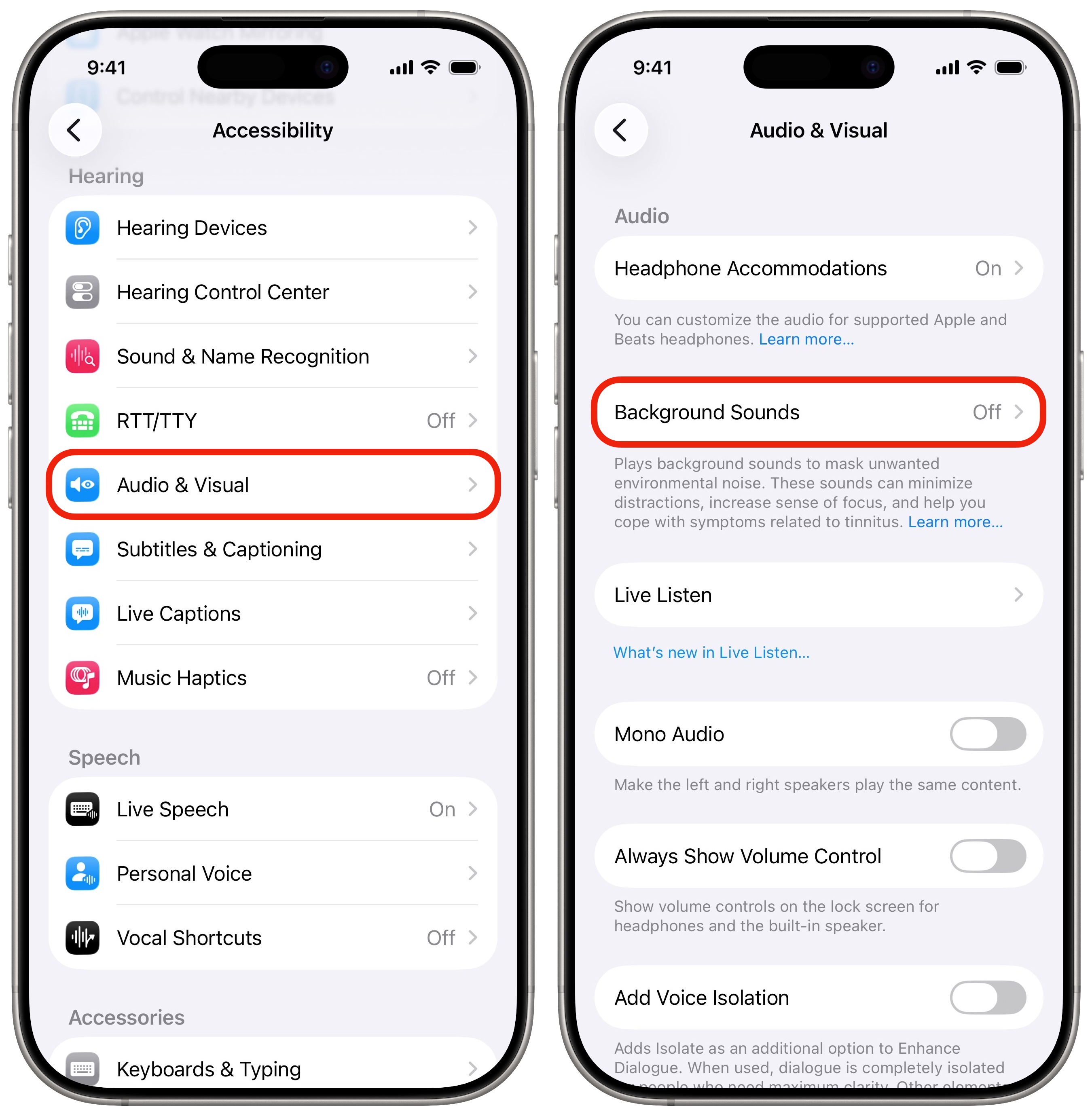
Go to Settings > Accessibility, scroll down a bit and tap on Audio & Visual > Background Sounds. Turn on Background Sounds to enable the feature.
Below, you have two volume sliders: one for adjusting the volume of the sound and one for adjusting the volume while other music or videos are playing. You can’t typically play two things at once on the iPhone, but this is an exception.
Tap Play Sample to get an idea of how loud the background sound will be when you have music playing. You can also turn it off entirely with the Use When Media Is Playing switch.
Stop Sounds When Locked, if enabled, will only play your background sounds when your phone is being used.
Choose your ambient sounds
Screenshot: D. Griffin Jones/Cult of Mac
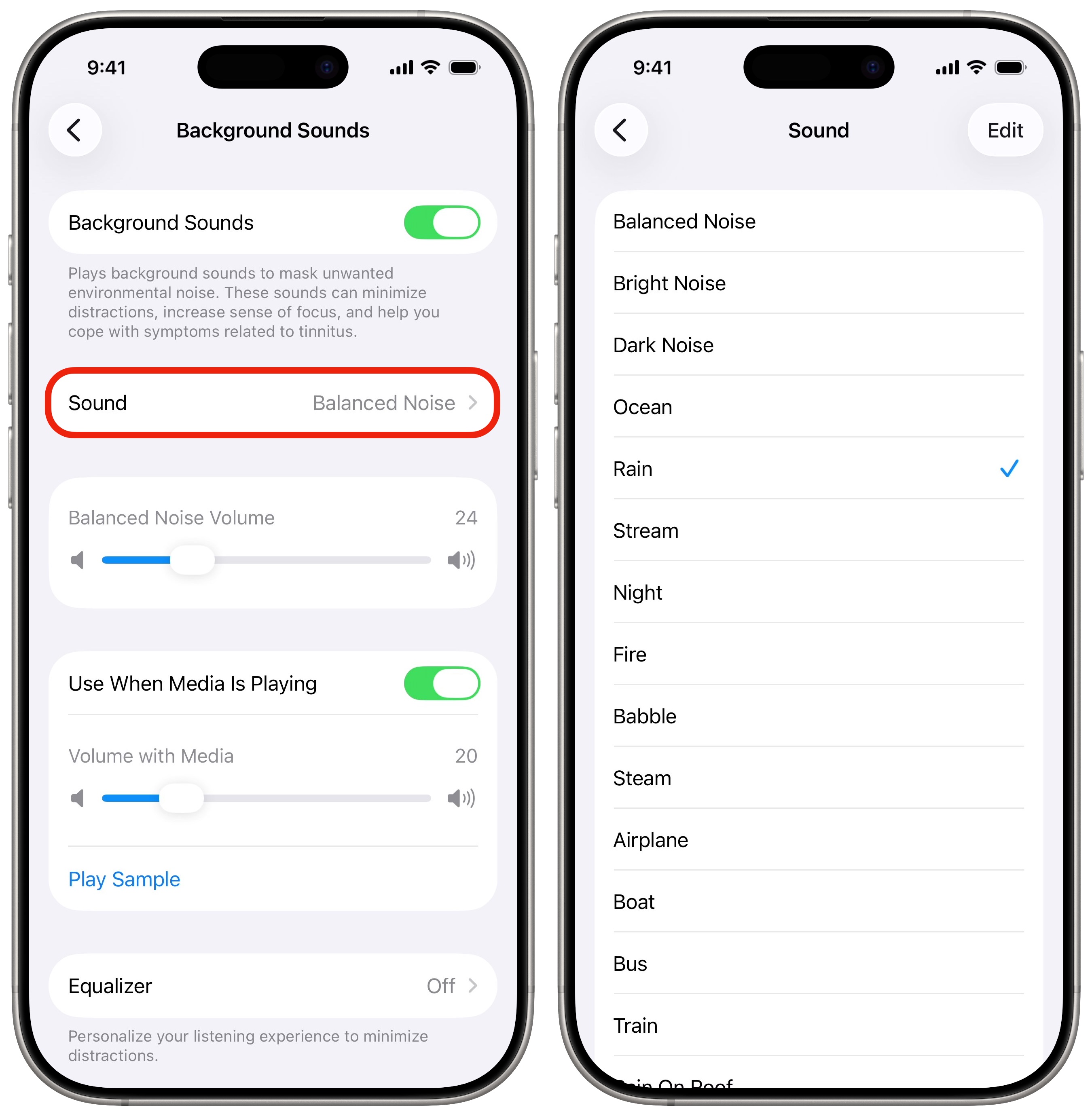
Tap on Sound to switch between noises:
- Balanced Noise, a medium static sound.
- Bright Noise, a higher-pitched static sound.
- Dark Noise, a lower-pitched static sound.
- Ocean, the sound of waves slowly crashing.
- Rain, with occasional birds chirping.
- Stream, a running creek.
- Night, to hear crickets and frogs.
- Fire, for a crackling wood fireplace. (Marshmallows not included.)
- Babble, miscellaneous sounds of people chattering.
- Steam, a boiler gently blowing and dripping.
- Airplane, a jet flying at cruising altitude.
- Boat, a ship riding through the ocean.
- Bus, gently cruising down the road.
- Train, riding over some tracks.
- Rain on Roof, a muted pitter-patter indoors.
- Quiet Night, a chiller amount of crickets and frogs.
Selecting any sound will start to download, which only takes a moment.
Set a timer to turn it off automatically
Screenshot: D. Griffin Jones/Cult of Mac
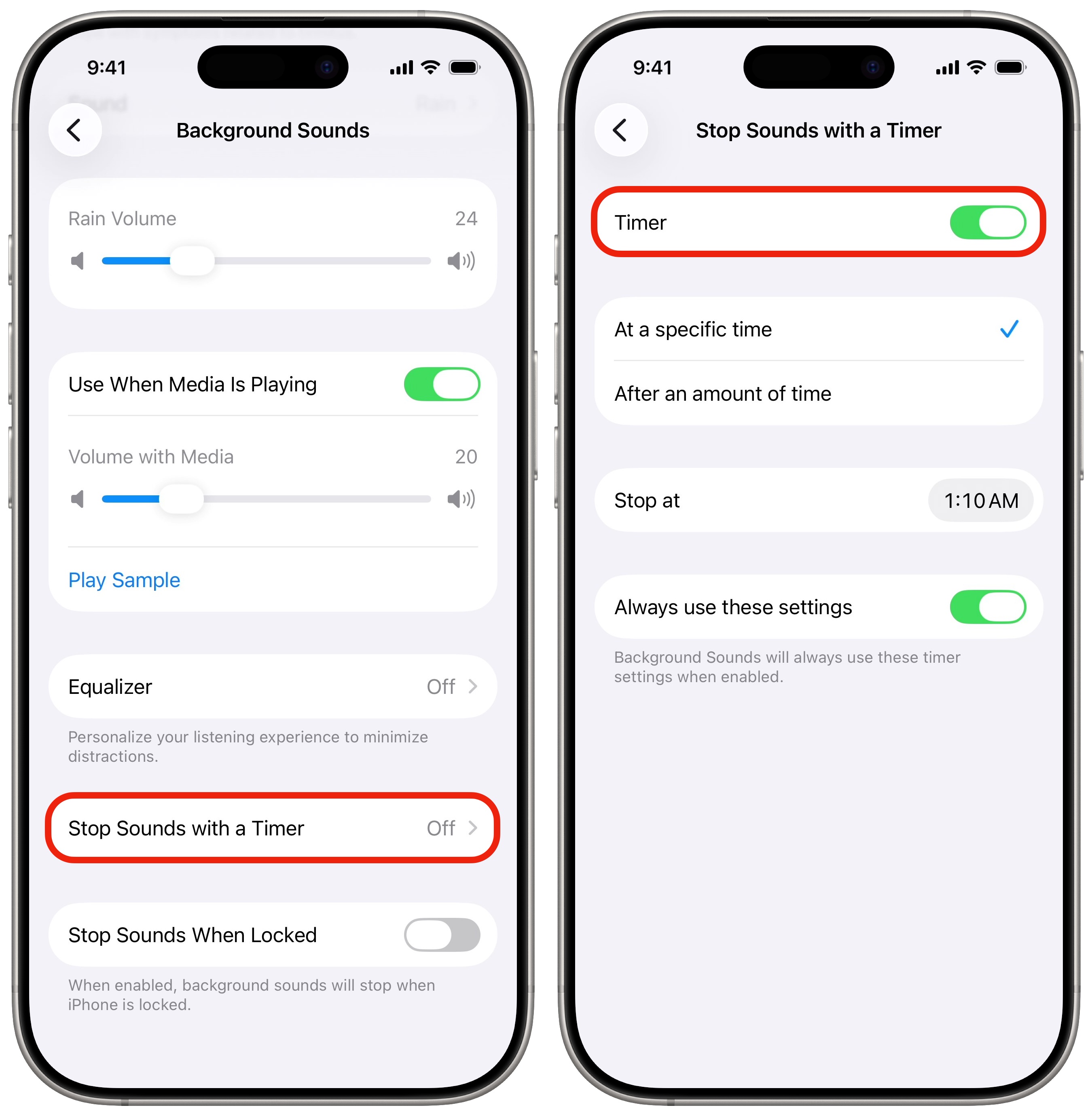
Tap Stop Sounds with a Timer and enable Timer to have the background sounds stop after a while.
If you use the feature while you sleep, I recommend setting it At a specific time. Set Stop at about an hour after you typically fall asleep.
If you use this for studying or working, like with a Pomodoro timer, you should set it for After an amount of time. Set Stop after to a duration of your choosing, selecting hours and minutes.
If this is the only way you plan on using the feature, enable Always use these settings. Your timer will be enabled as soon as you turn on background sounds.
Toggle Background Sounds from Control Center
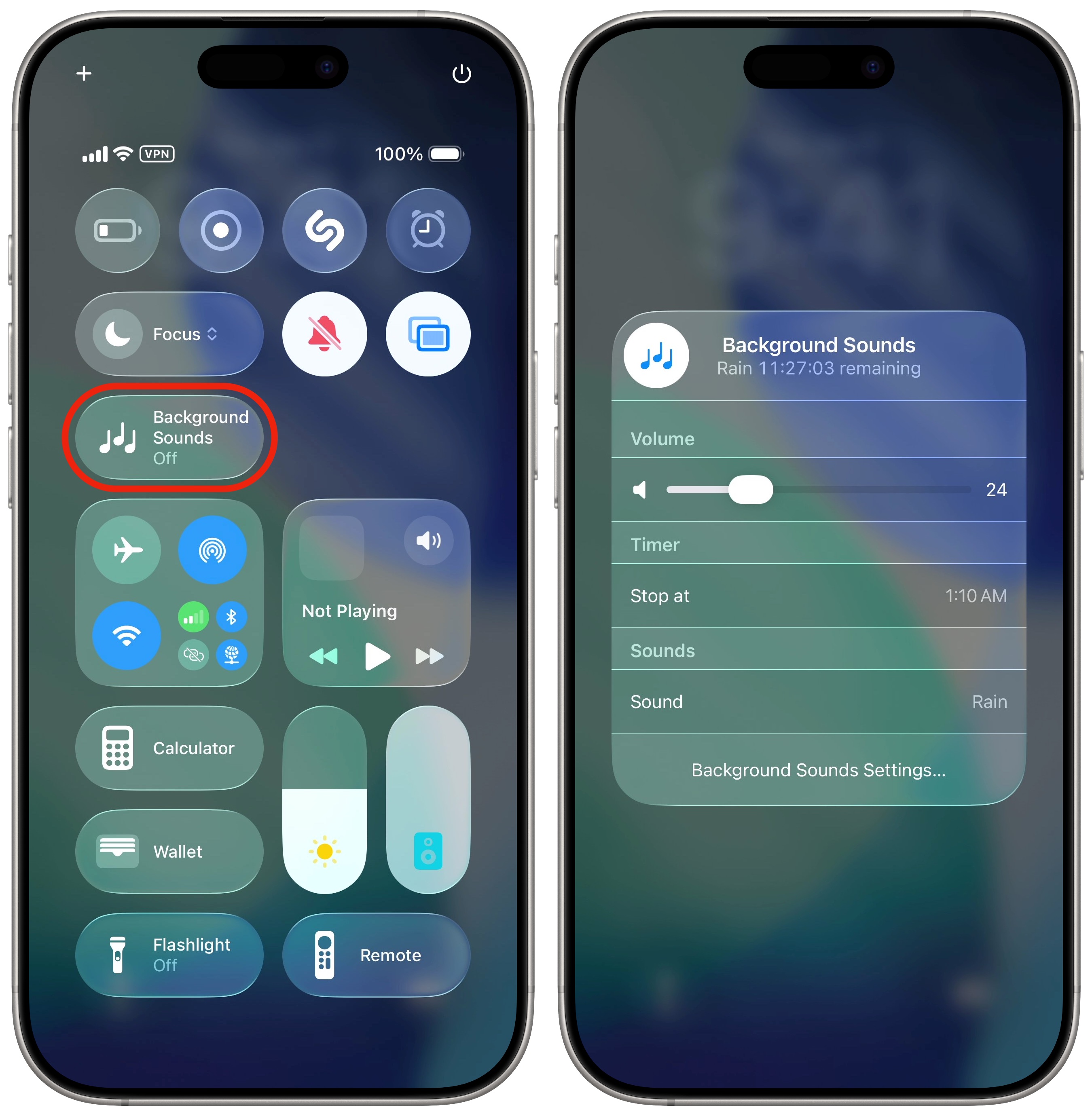
Screenshot: D. Griffin Jones/Cult of Mac
If you like this feature, you don’t want to dig through three menus in Settings to turn it on and off — there’s a much faster way. You can also add a dedicated Background Sounds button to Control Center directly. Add and remove icons from Control Center by tapping and holding on the screen and tapping Add a Control, type in Background Sounds to add it and drag it wherever you want.
Tap the Background Sounds button to turn it on. Tap and hold the button to quickly adjust setting like volume, the timer and which sound it plays. And you can tap Background Sounds Settings… to change anything else.
Use background sounds on the Mac, too
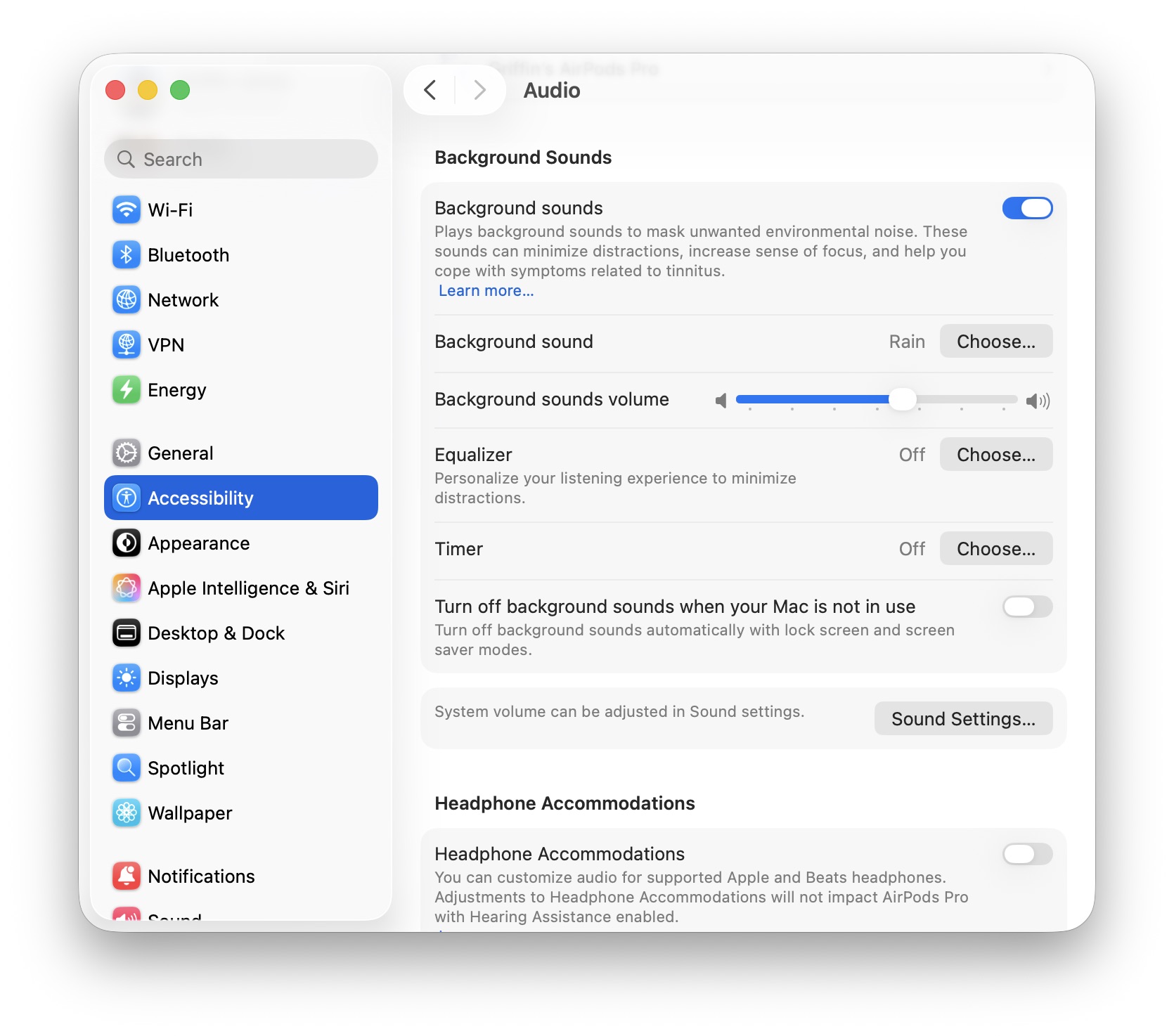
Screenshot: D. Griffin Jones/Cult of Mac
You have the same options on your Mac, too. Open System Settings > Accessibility > Audio and you’ll see all the same sounds and settings. If you work on a Mac, you might consider playing these sounds out of your computer instead of your phone.
More great accessibility features
- Vehicle Motion Cues will help reduce feelings of motion sickness. With the feature turned on, dots along the edge of your iPhone screen will animate in sync with the motion of the plane, train or automobile you’re riding in.
- Eye Tracking lets you control your iPhone entirely with your eyes. You can use this feature in a pinch if you need to use your phone with soapy hands while doing the dishes.
- Music Haptics add another dimension to audio: vibration. The feature brings to life a track of rhythmic vibrations and patterns timed to certain Apple Music songs.
- Vocal Shortcuts let you control your phone by speaking a command out loud. Think “Hey Siri,” but for running your own custom actions from Apple’s Shortcuts app.
- Live Speech plays whatever you type into the keyboard out of the speakers. And Personal Voice lets you train your phone to mimic your own voice.
- Sound Recognition will continuously listen for certain sounds and will notify you when they’re recognized.
- Guided Access locks down your iPhone to a single app before you hand it to a kid or someone else.
We originally published this article on background sounds on iPhone on January 16, 2023. We updated it with the latest information on December 3, 2024, and April 15, 2026.

D. Griffin Jones is a writer, podcaster and video producer for Cult of Mac. Griffin has been a passionate computer enthusiast since 2002, when he got his first PC — but since getting a Mac in 2008, he hasn’t turned back. His skills in graphic and web design, along with video and podcast editing, are self-taught over 20+ years. Griffin has a bachelor’s degree in computer science and has written several (unpublished) apps for Mac and iOS. His collection of old computers is made up of 40+ desktops, laptops, PDAs and devices, dating back to the early ’80s. He brings all of these creative and technical skills, along with a deep knowledge of Apple history, into his work for Cult of Mac.

